Etsy QuickBooks Integration: A Complete Guide
Integrating Etsy with QuickBooks Online is one of the best decisions an online seller can make, especially as daily orders, fees, taxes, and payouts start to accumulate. While Etsy’s built-in reports are useful, the manual transfer of those figures into QuickBooks can be tedious and error-prone. This is where PayTraQer becomes a true game-changer.
PayTraQer builds an automated connection between Etsy and QuickBooks Online, automatically pulling in every sale, refund, fee, discount, and settlement without any effort from you. Whether you are an Etsy seller managing weekly sales, an accountant handling multiple stores, or a bookkeeper aiming for accuracy, this guide will take you through the complete process, installation, setup, syncing, automation, and reviewing entries. By the end, you will have a fully automated system that keeps your Etsy bookkeeping accurate, organized, and ready for audits.
This blog is ideal for Etsy sellers, accountants, and bookkeepers handling expanding eCommerce businesses that require precise, automated sync between Etsy and QuickBooks Online to make bookkeeping easier, minimize mistakes, and enhance daily financial processes.
Contents
How to Connect Etsy with QuickBooks Online using PayTraQer (Step-by-Step Guide)
Why Connect QuickBooks with Etsy Using PayTraQer?
Wrap Up
Frequently Asked Questions
How to Connect Etsy with QuickBooks Online using PayTraQer (Step-by-Step Guide)
Step 1: Install PayTraQer from the QuickBooks App Store
Sign in to your QuickBooks Online account.
Go to the Apps menu on the left side.
Look for PayTraQer and click on Get App Now.
Follow the instructions to authorize and permit PayTraQer to link with your QuickBooks company file.
Step 2: Launch PayTraQer and Complete Initial Setup
After installation, launch PayTraQer from the Apps menu.
Select your QuickBooks company and verify the access permissions.
PayTraQer will assist you with an initial onboarding process to establish your syncing preferences.
This helps PayTraQer to understand your recording and tracking requirements.
Step 3: Connect Your Etsy Seller Account to PayTraQer
Select the “Connectors” option seen on the left side of the PayTraQer dashboard. Now, select “E-commerce Connectors” from the dropdown.
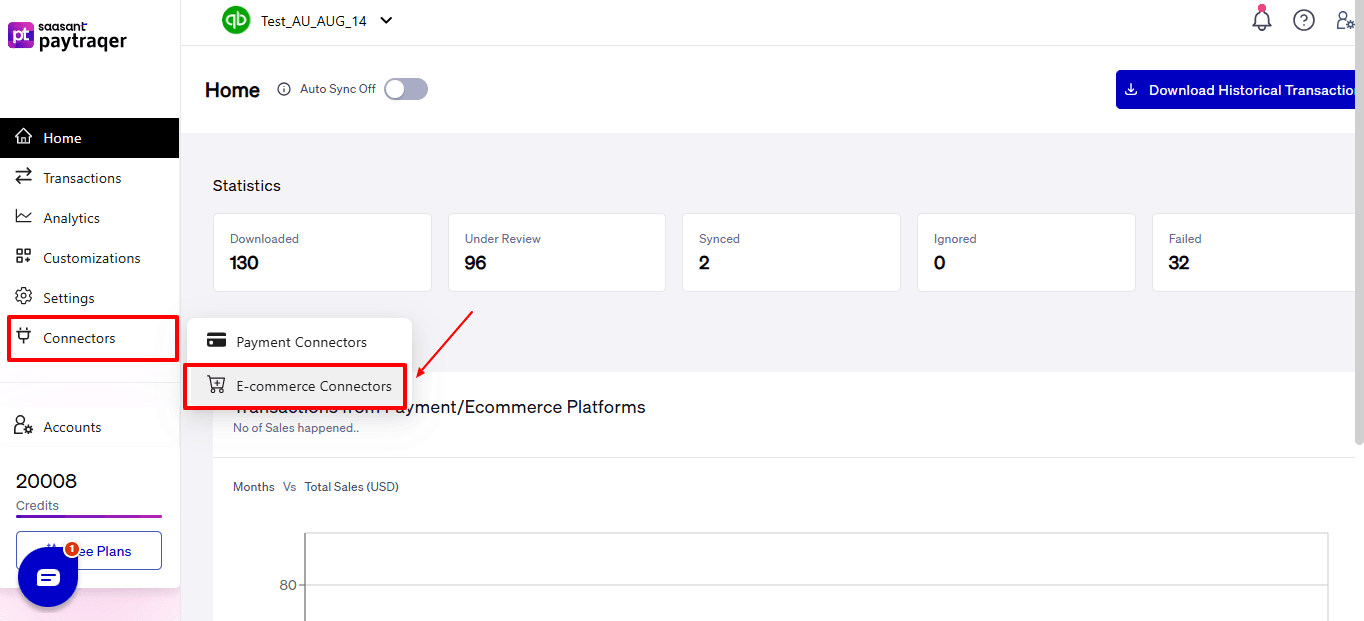
Choose Etsy from the list of supported payment and sales channels.
Choose one of the following methods based on your administrative access to Etsy:
If You Are the Etsy Admin:
Select the Connect button visible on the Etsy connector card.
Select “Proceed.” You will be redirected to the Etsy login interface.
Enter your Etsy admin email and password to sign in.
Pick the Etsy account that aligns with your business (if you have multiple accounts).
Click Connect to enable the link between Etsy and PayTracker.
You will automatically return to PayTracker to continue the setup process.
If You Are Not the Etsy Admin:
Select Invite Admin or Client and choose Etsy from the available account authorization options.
Click on Get Invite Link to create a secure connection link.
Distribute the link to the account owner; they need to finalize the authorization.
The link remains valid for 48 hours, so make sure to confirm promptly.
Once the admin authorizes, access will sync back to PayTracker.
Step 4: Choose Your Data Sync Mode
PayTracker features two sync formats that specify how Etsy transactions will be documented in QuickBooks:
Option A: Consolidated Sync (Sales Summary)
Ideal for companies with significant daily or weekly transaction volumes.
Transactions are consolidated into summary entries instead of being listed as individual invoices or receipts.
Helps keep ledgers cleaner and decreases the transaction load within QuickBooks.
Enhances the speed of reconciliation as payouts and deposits align in a more predictable manner.
Option B: Itemized Sync (Individual Transaction Posting)
It is recommended if you need thorough line-level data for your reporting or recordkeeping needs.
Each transaction from Etsy is entered individually into QuickBooks.
Customer information, product details, tax information, and payment data are entirely traceable.
To continue:
Choose the sync mode that best represents how you wish the data to be displayed in QuickBooks.
Press Get Started to validate your selection and proceed.
Step 5: Configure Posting and Settlement Preferences
After connecting to Etsy, PayTracker will request your accounting setup preferences:
Select whether PayTracker is to automatically process Etsy payouts and settlements.
Choose the bank account in QuickBooks that will record Etsy deposits.
Assign the income account for sales revenue (like Sales Income or Online Sales).
Assign the expense account for Etsy processing fees (for example, Merchant Fees).
Choose how PayTracker should match or create customer records:
Match by email
Match by name
Always create a new customer
Review the tax rate settings and decide how taxes should be mapped in QuickBooks.
After verifying all mappings and routing details, click Save Settings.
Step 6: Review Transactions Before Syncing to QuickBooks
The Transactions dashboard has various organizational views that assist in managing and checking your data flow:
Section | Purpose |
Review | Lists transactions that are ready for syncing. |
Synced | Includes transactions that have already been sent to QuickBooks. |
Error | Lists transactions that failed and need to be corrected. |
Ignore | Keeps track of transactions you deliberately avoided. |
Sync History | Provides a full timeline log of previous syncs. |
To review a transaction:
Select any transaction row in the Review tab.
Verify:
Customer name or match settings
Product or service item mapping
Revenue and fee accounts
Payment date accuracy
Tax treatment
Make modifications if needed.
Click Sync to forward the transaction to QuickBooks.
Step 7: Enable Auto-Sync (Optional but Recommended)
Auto Sync is set to off by default to permit a manual review of the first transactions.
Once you have validated that the mapping is correct and the entries are posting accurately:
Turn Auto Sync ON.
PayTracker will then:
Automatically identify new Etsy transactions.
Implement your mapping rules.
Sync them into QuickBooks regularly.
Step 8: Download Recent Etsy Transactions
Select Download Transactions from the PayTracker dashboard.
PayTracker fetches transaction history from Etsy for the past 60 days.
Only finalized Etsy transactions are downloaded to avoid syncing any pending or incomplete charges.
Once the download is complete, the transactions will be listed in the Transactions section for your review.
Step 9: Download historical Etsy Transactions
Once your settings have been configured:
Proceed to the Transactions screen in PayTraQer.
Click on Download Historical Transactions.
Choose the date range for your previous Etsy orders.
Download the information. PayTraQer will showcase these records in the Review tab.
Inspect a few sample transactions, then select and click Sync to send them to QuickBooks.
Start with smaller ranges for testing, then use larger ranges when you feel ready.
Why Connect QuickBooks with Etsy Using PayTraQer?
Connecting Etsy to QuickBooks Online is easy and significantly more accurate when using PayTraQer. Unlike standard import tools or manual CSV uploads, PayTraQer is designed to comprehend how Etsy organizes its orders, fees, taxes, and payouts. Here’s why it’s the top choice for Etsy sellers, accountants, and bookkeepers:
Automated Sync for Every Etsy Transaction: PayTraQer captures all Etsy transactions, including sales, refunds, cancellations, discounts, taxes, shipping charges, and fee deductions automatically. This process reduces the need for manual entry, cuts down on errors, and keeps your accounting tasks running efficiently every day.
Clean Books with Itemized or Summary Syncing: You have the option to select either transaction-level details or consolidated summaries according to your bookkeeping preferences. This adaptability helps avoid clutter in QuickBooks for high-volume stores while still providing comprehensive reporting when needed.
Real-Time Updates for Daily Bookkeeping: Once an Etsy order is completed, PayTraQer automatically syncs it with QuickBooks. This real-time automation ensures you always have the latest sales figures, inventory updates, and profit analysis.
Error-Free Sync With Smart Validation: If a transaction lacks necessary details or has incorrect mapping, PayTraQer highlights it in the Error tab, assisting users in resolving issues prior to syncing. This ensures that erroneous entries do not enter QuickBooks.
Fast Historical Sync: PayTraQer swiftly imports your previous Etsy transactions, enabling instant sync of up to 60 days or more of historical data. This feature assists sellers, bookkeepers, and accountants in updating their records without the need for manual uploads or lengthy reconciliations.
Wrap Up
By integrating Etsy with QuickBooks Online through PayTraQer, you can transform how you handle your financial workflow. Instead of managing spreadsheets, tracking fees by hand, or reconciling countless transactions, PayTraQer enhances every element of your accounting process. Sales, refunds, deposits, and fees are automatically transferred into QuickBooks with utmost accuracy. Whether you run one Etsy shop or several, this integration offers the clarity, consistency, and automation required to keep your finances organized. Turn it on once, and your bookkeeping will instantly become more streamlined, smarter, and much more reliable.
If you have inquiries regarding our products, features, trial, or pricing, or if you require a personalised demo, contact our team today. We are ready to help you find the ideal solution for your QuickBooks workflow.
Frequently Asked Questions
1) Can bookkeepers use one PayTraQer account to manage multiple Etsy stores?
Indeed, PayTraQer supports various connectors, enabling bookkeepers and accountants to oversee multiple Etsy shops from a single dashboard.
2) Can I choose between summary and detailed Etsy transaction syncing?
Of course. PayTraQer provides consolidated summary syncing for neater books or itemized syncing for thorough transaction visibility in QuickBooks Online.
3) How far back can PayTraQer import historical Etsy orders?
PayTraQer retrieves Etsy transaction records from the last 60 days and more, providing precise historical sync without the need for manual data input.
4) What happens if an Etsy transaction fails to sync?
Failed entries are listed in the Error tab along with detailed explanations, enabling quick fixes and resyncing without disrupting your existing QuickBooks data.
5) Does PayTraQer support multiple Etsy admins for authorization?
Certainly, non-admin users can generate secure invitation links that enable store owners to authorize the connection on their behalf.
6) Can I turn off Auto-Sync if I want manual approval?
Yes, you can disable Auto-Sync in PayTraQer. Just change to Manual Sync Mode, and you can check, approve, and sync each Etsy transaction one by one before it goes into QuickBooks Online.