WooCommerce QuickBooks Integration
WooCommerce is a highly flexible e-commerce platform, particularly for WordPress-based businesses. Its open-source design, customizable features, and smooth checkout process make it very popular with small and medium-sized companies. However, while WooCommerce makes selling easier, it does not excel in accounting and financial management.
If you are using QuickBooks Online for your accounting, entering orders, refunds, fees, taxes, and payout information by hand can quickly become too much to handle. Many WooCommerce store owners find themselves spending hours each week reconciling sales and sorting transactions, often facing discrepancies that need additional fixing.
This is where PayTraQer steps in as a strong solution. PayTraQer links WooCommerce with QuickBooks Online and automates the entire accounting process. It syncs every detail from WooCommerce sales, refunds, taxes, and shipping charges directly into QuickBooks, accurately and instantly, without any manual work.
This blog is ideal for WooCommerce sellers, accountants, bookkeepers, and small to medium-sized eCommerce businesses looking to automate their bookkeeping and ensure accurate financial records.
Contents
How to Connect WooCommerce with QuickBooks Online using PayTraQer (Step-by-Step Guide)
Why Connect QuickBooks with WooCommerce Using PayTraQer?
Wrap Up
Frequently Asked Questions
How to Connect WooCommerce with QuickBooks Online using PayTraQer (Step-by-Step Guide)
Step 1: Install PayTraQer from the QuickBooks App Store
Sign in to your QuickBooks Online account.
Go to the Apps menu on the left side.
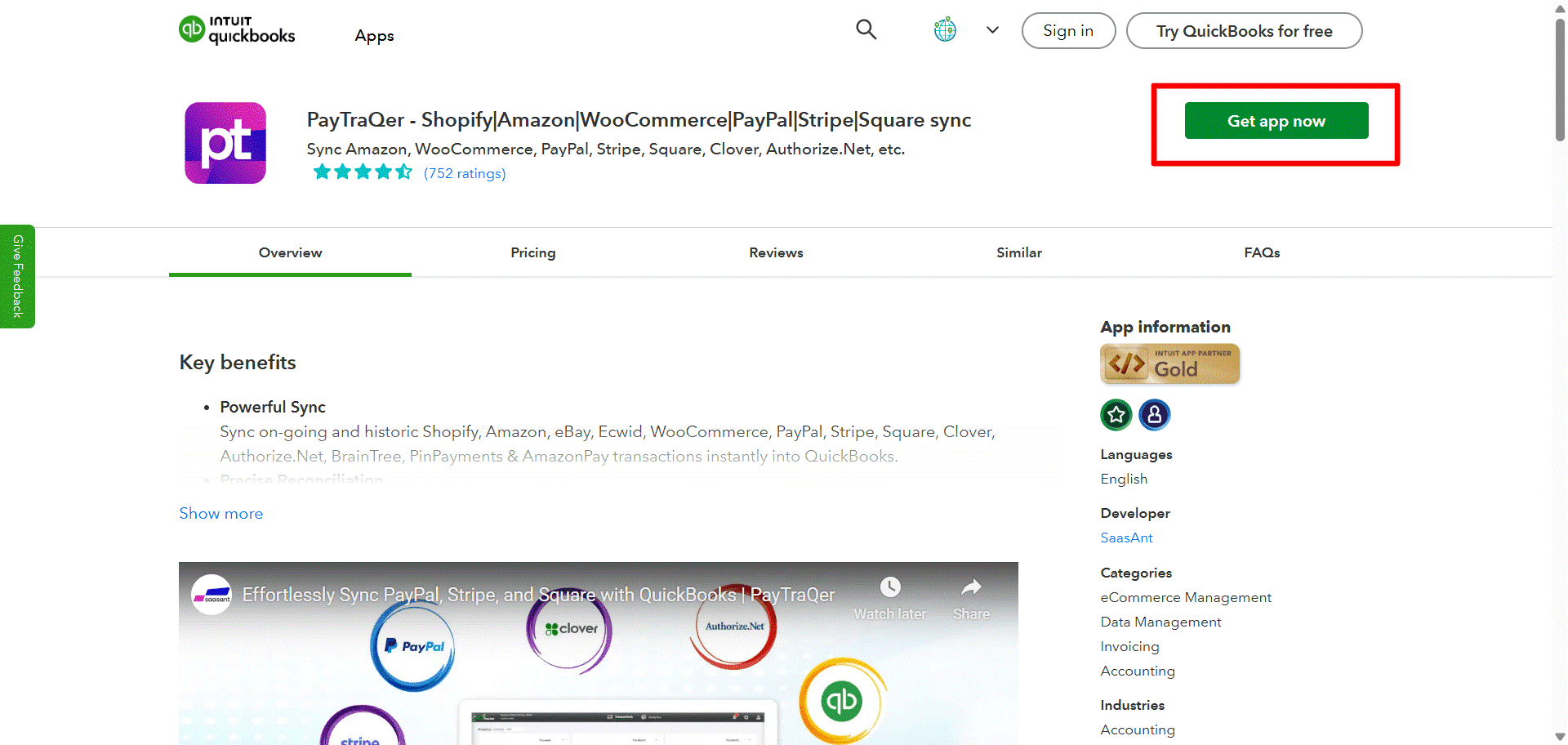
Look for PayTraQer and click on Get App Now.
Follow the instructions to authorize and permit PayTraQer to link with your QuickBooks company file.
Step 2: Launch PayTraQer and Complete Initial Setup
After installation, launch PayTraQer from the Apps menu.
Select your QuickBooks company and verify the access permissions.
PayTraQer will assist you with an initial onboarding process to establish your syncing preferences.
This helps PayTraQer to understand your recording and tracking requirements.
Step 3: Connect Your WooCommerce Seller Account to PayTraQer
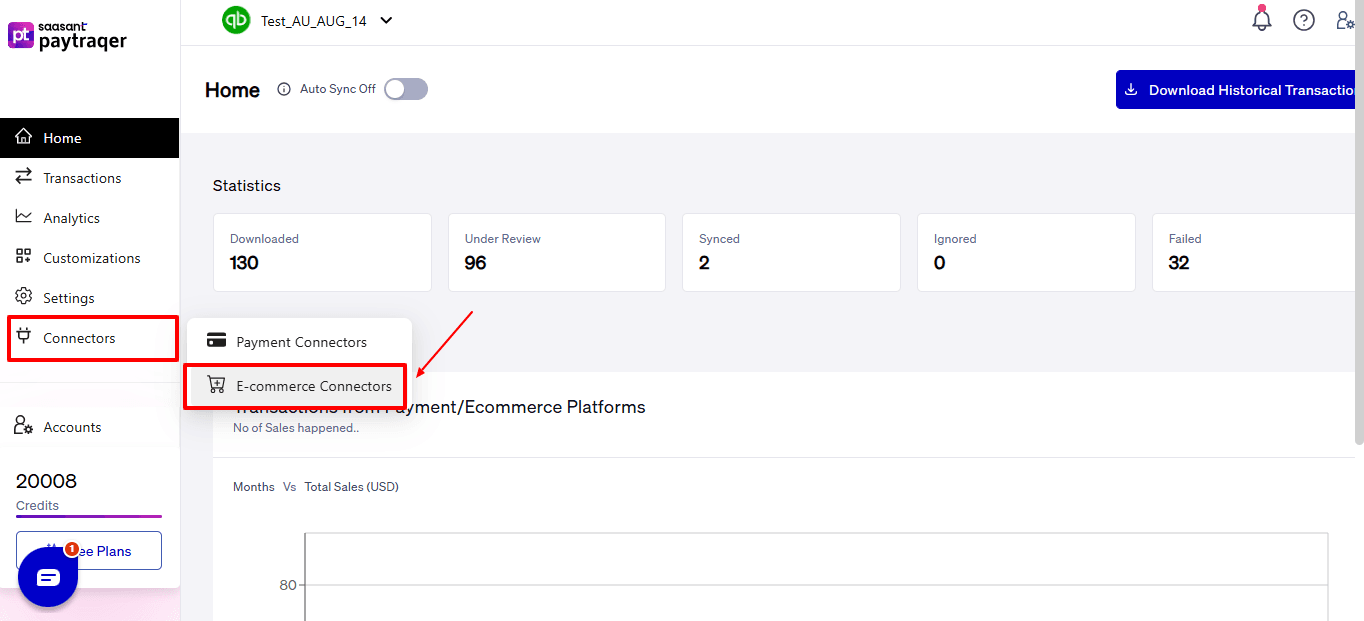
Select the “Connectors” option seen on the left side of the PayTraQer dashboard. Now, select “E-commerce Connectors” from the dropdown.
Choose WooCommerce from the list of supported payment and sales channels.
Choose one of the following methods based on your administrative access to WooCommerce:
If You Are the WooCommerce Admin:
Select the Connect button visible on the WooCommerce connector card.
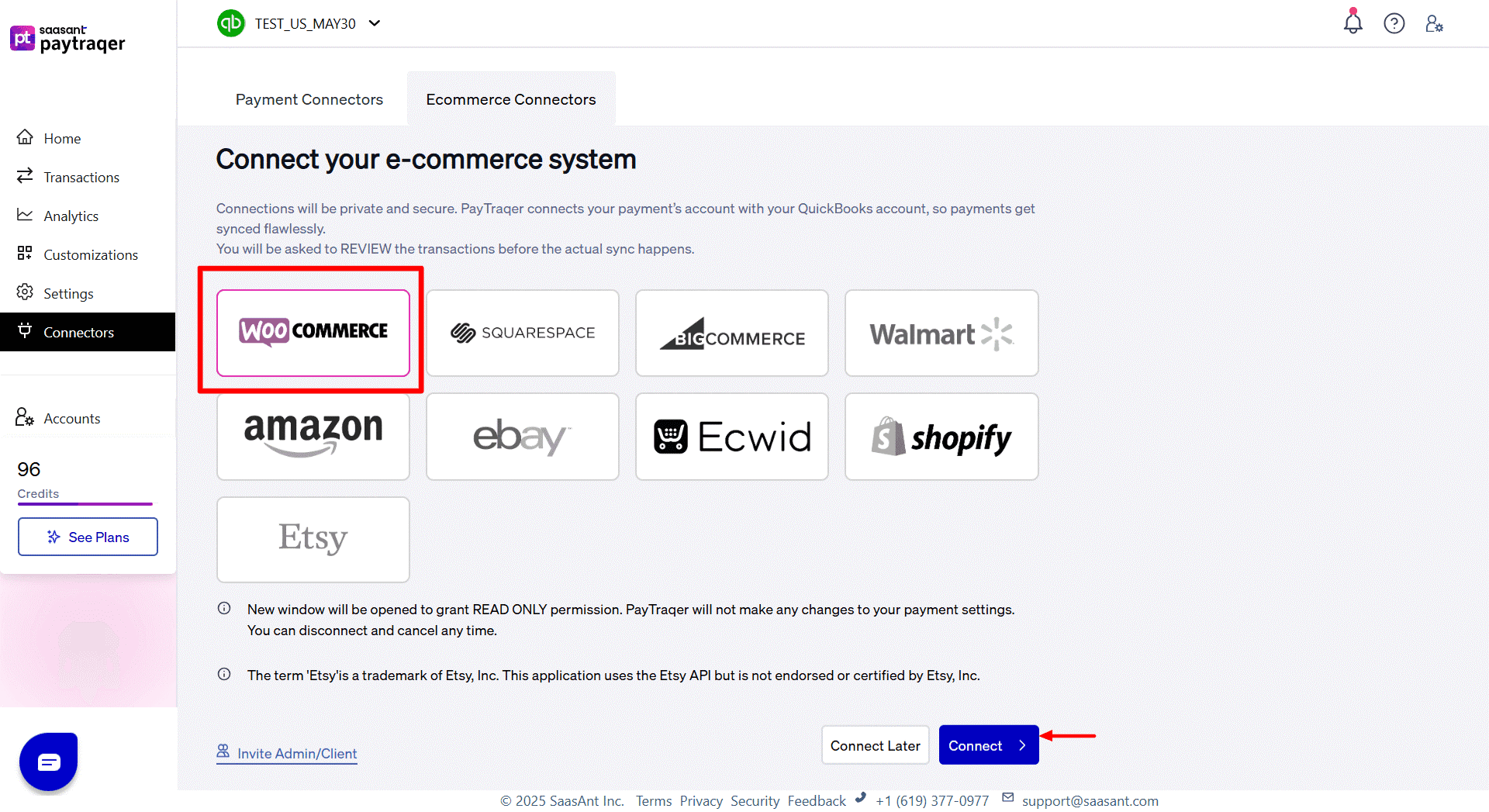
Select “Proceed.” You will be redirected to the WooCommerce login interface.
Enter your WooCommerce admin email and password to sign in.
Pick the WooCommerce account that aligns with your business (if you have multiple accounts).
Click Connect to enable the link between WooCommerce and PayTraQer.
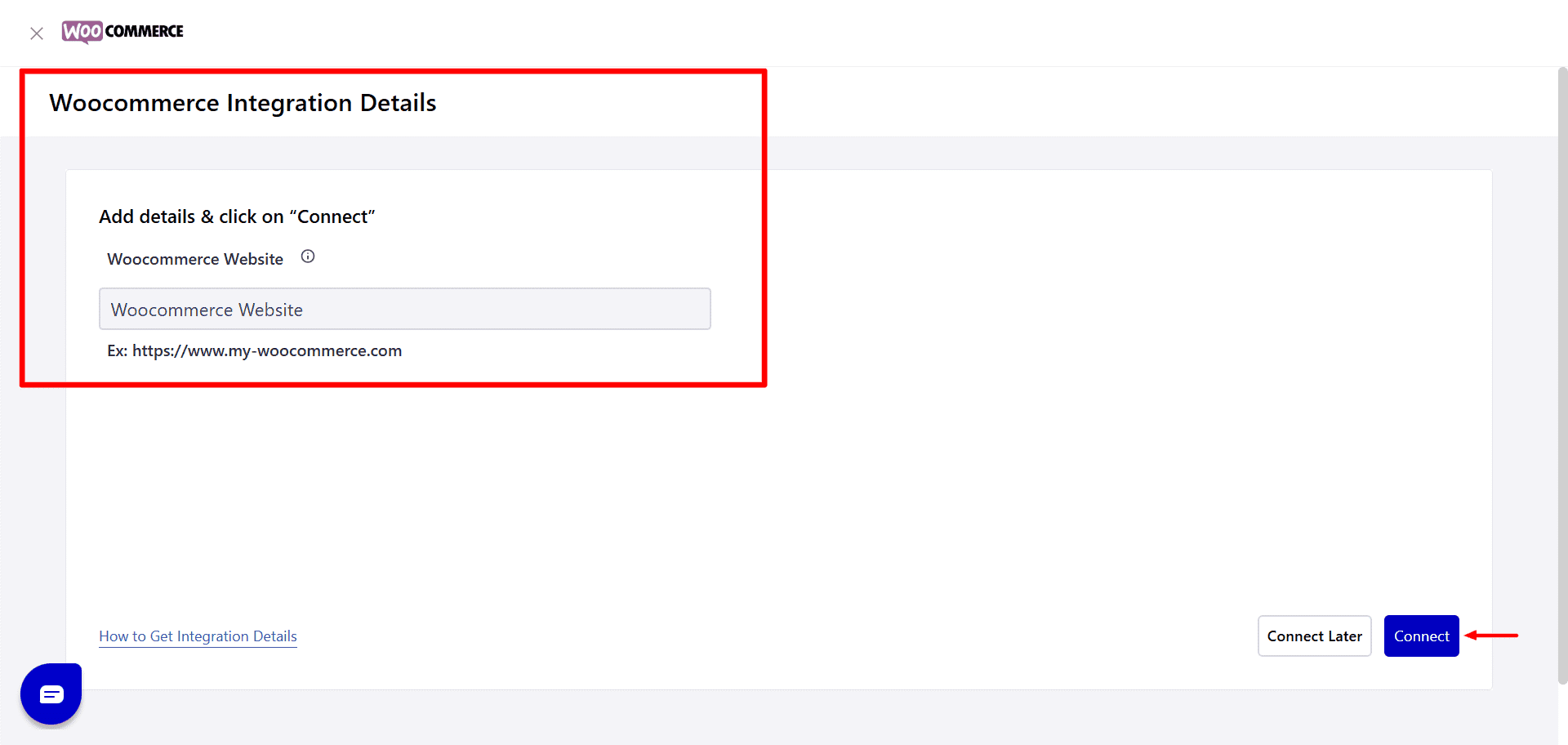
You will automatically return to PayTraQer to continue the setup process.
If You Are Not the WooCommerce Admin:
Select Invite Admin or Client and choose WooCommerce from the available account authorization options.
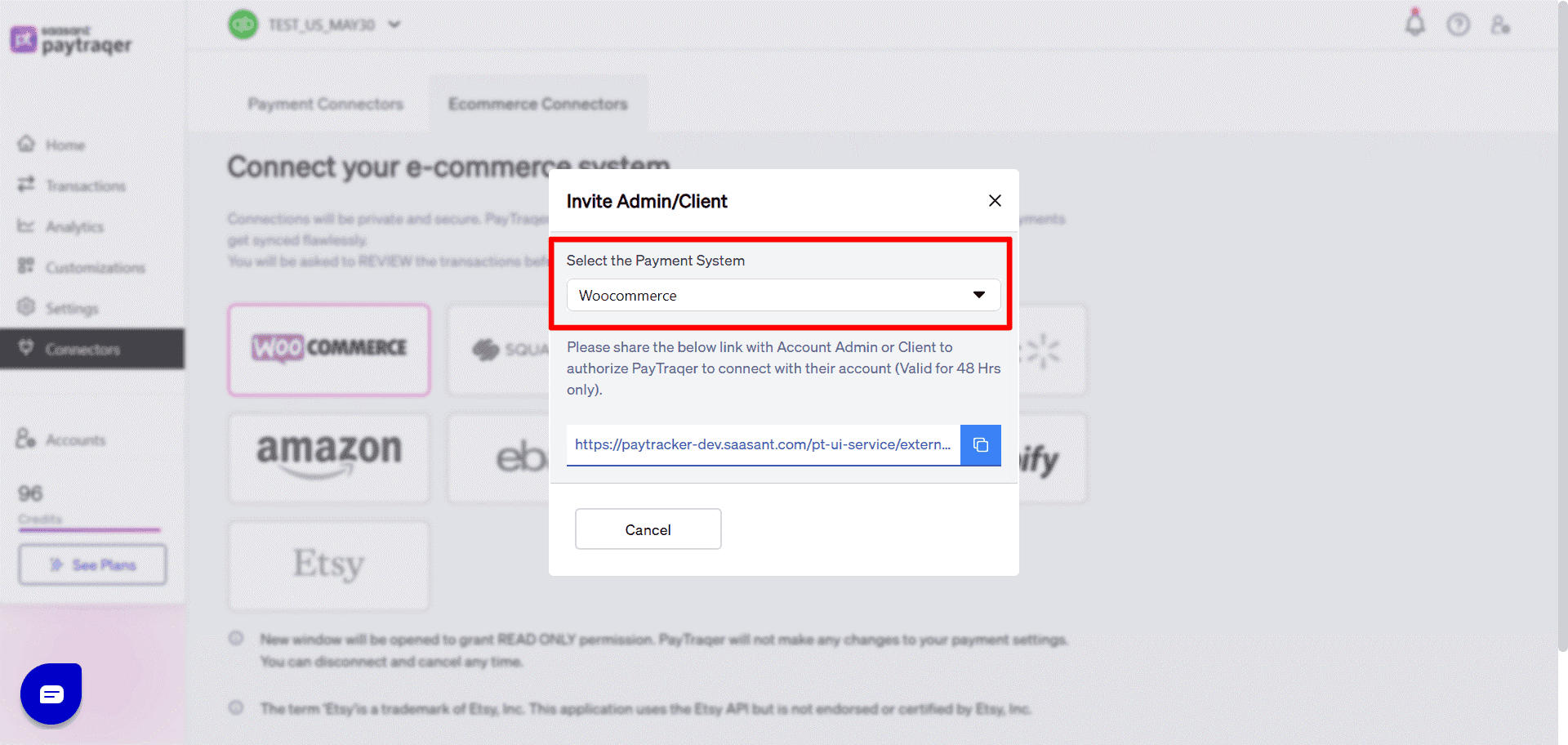
Click on Get Invite Link to create a secure connection link.
Distribute the link to the account owner; they need to finalize the authorization.
The link remains valid for 48 hours, so make sure to confirm promptly.
Once the admin authorizes, access will sync back to PayTraQer.
Step 4: Choose Your Data Sync Mode
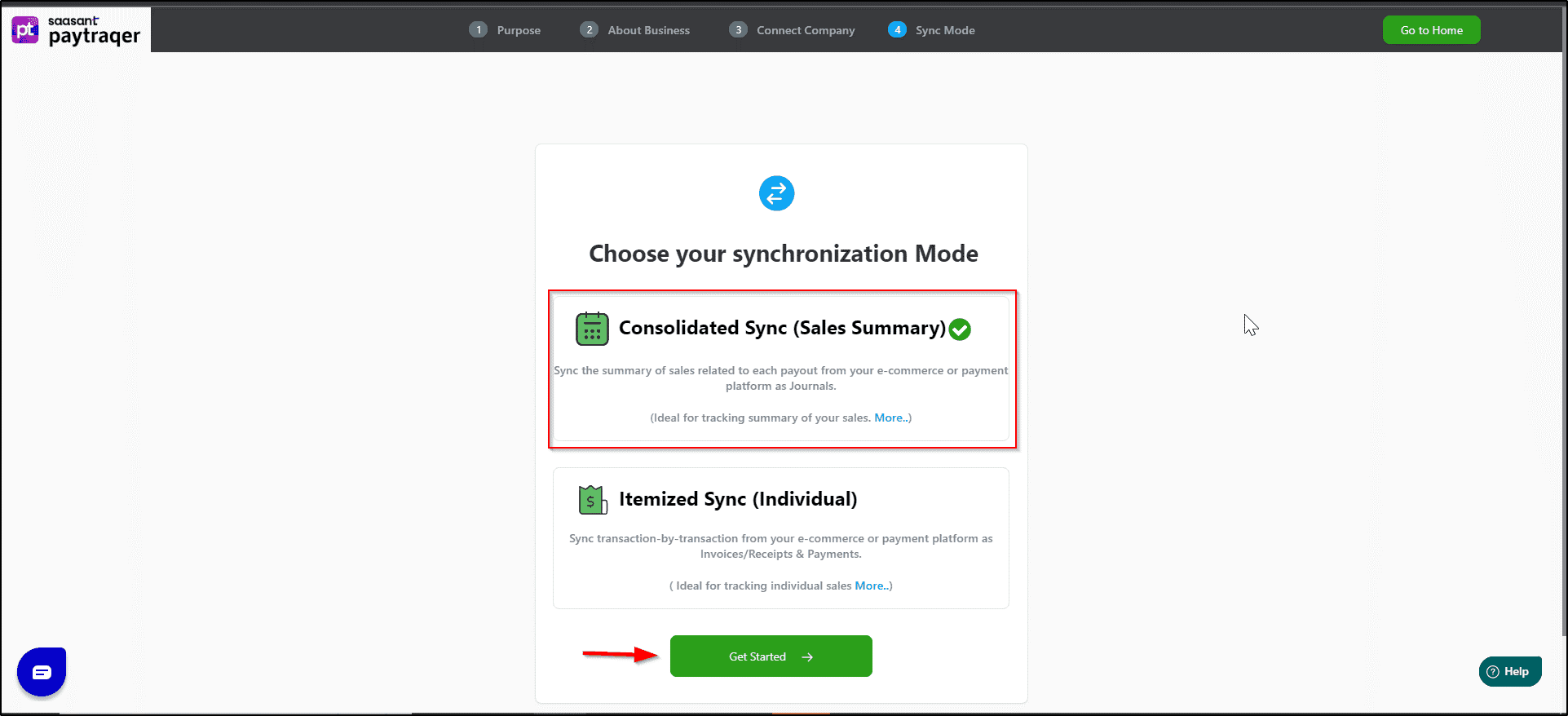
PayTraQer features two sync formats that specify how WooCommerce transactions will be documented in QuickBooks:
Option A: Consolidated Sync (Sales Summary)
Ideal for companies with significant daily or weekly transaction volumes.
Transactions are consolidated into summary entries instead of being listed as individual invoices or receipts.
Helps keep ledgers cleaner and reduces transaction load in QuickBooks.
Enhances the speed of reconciliation as payouts and deposits align in a more predictable manner.
Option B: Itemized Sync (Individual Transaction Posting)
It is recommended if you need thorough line-level data for your reporting or recordkeeping needs.
Each transaction from WooCommerce is entered individually into QuickBooks.
Customer information, product details, tax information, and payment data are entirely traceable.
To continue:
Choose the sync mode that best represents how you wish the data to be displayed in QuickBooks.
Press Get Started to validate your selection and proceed.
To modify your sync mode, click on the mode you wish to select, as indicated in the image below.
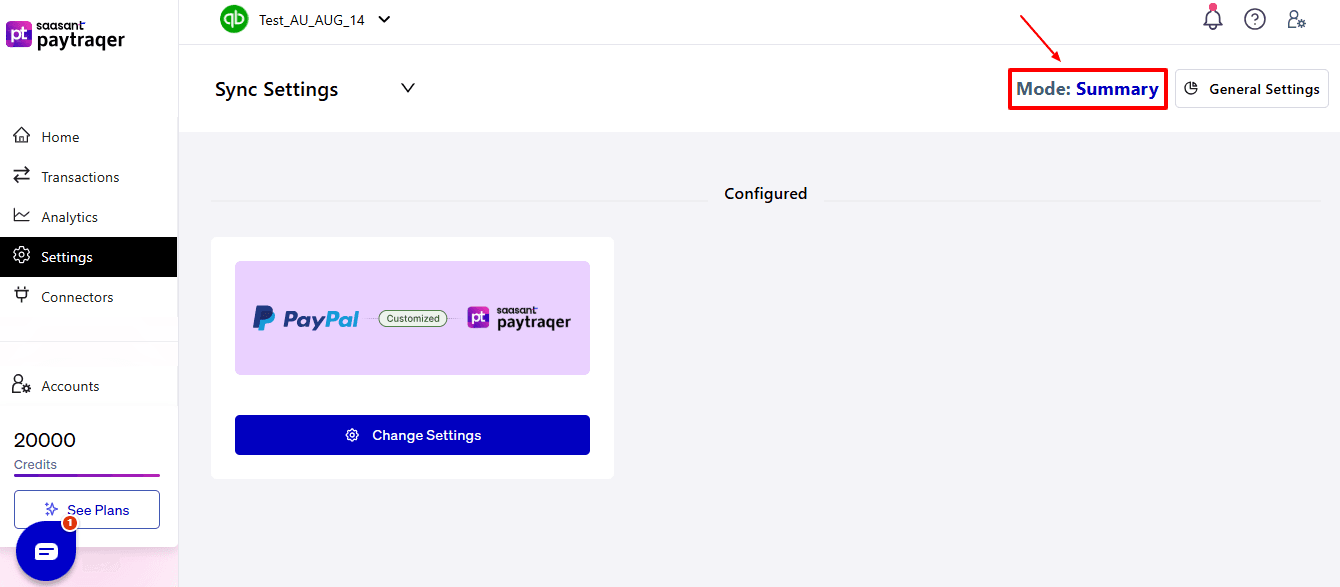
A pop-up will appear, asking you to disconnect the prior connectors before you can change the sync mode. You may proceed based on your preference.
Step 5: Configure Posting and Settlement Preferences
After connecting to WooCommerce, PayTraQer will request your accounting setup preferences:
Select whether PayTraQer is to automatically process WooCommerce payouts and settlements.
Choose the bank account in QuickBooks that will record WooCommerce deposits.
Assign the income account for sales revenue (like Sales Income or Online Sales).
Assign the expense account for WooCommerce processing fees (for example, Merchant Fees).
Choose how PayTraQer should match or create customer records:
Match by email
Match by name
Always create a new customer
Review the tax rate settings and decide how taxes should be mapped in QuickBooks.
After verifying all mappings and routing details, click Save Settings.
Step 6: Review Transactions Before Syncing to QuickBooks
The Transactions dashboard has various organizational views that assist in managing and checking your data flow:
Section | Purpose |
Review | Lists transactions that are ready for syncing. |
Synced | Includes transactions that have already been sent to QuickBooks. |
Error | List transactions that failed and require correction. |
Ignore | Keeps track of transactions you deliberately avoided. |
Sync History | Provides a full timeline log of previous syncs. |
To review a transaction:
Select any transaction row in the Review tab.
Verify:
Customer name or match settings
Product or service item mapping
Revenue and fee accounts
Payment date accuracy
Tax treatment
Make modifications if needed.
Click Sync to forward the transaction to QuickBooks.
Step 7: Enable Auto-Sync (Optional but Recommended)
Auto Sync is off by default to allow manual review of the first transactions.
Once you have validated that the mapping is correct and the entries are posting accurately:
Turn Auto Sync ON.
The automatic sync function ensures that WooCommerce transactions are always up to date, operating in the background according to your chosen schedule without needing any manual input.
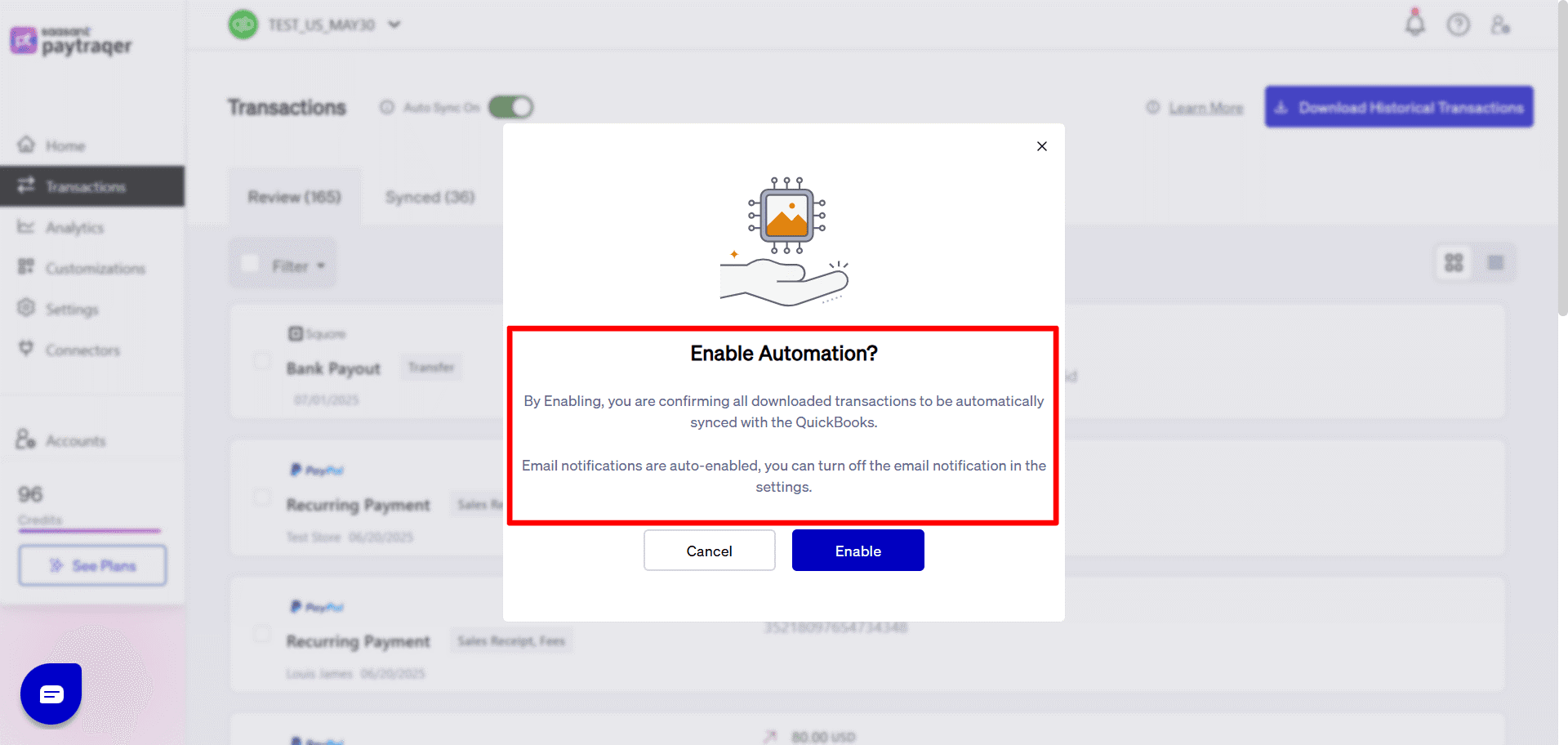
PayTraQer will then:
Automatically identify new WooCommerce transactions.
Implement your mapping rules.
Sync them into QuickBooks regularly.
Step 8: Download Recent WooCommerce Transactions
Select Download Transactions from the PayTraQer dashboard.
PayTraQer fetches transaction history from WooCommerce for the past 60 days.
Only finalized WooCommerce transactions are downloaded to avoid syncing any pending or incomplete charges.
Once the download is complete, the transactions will be listed in the Transactions section for your review.
Step 9: Download historical WooCommerce Transactions
Once your settings have been configured:
Proceed to the Transactions screen in PayTraQer.
Click on Download Historical Transactions.
Choose the date range for your previous WooCommerce orders.
Download the information. PayTraQer will showcase these records in the Review tab.
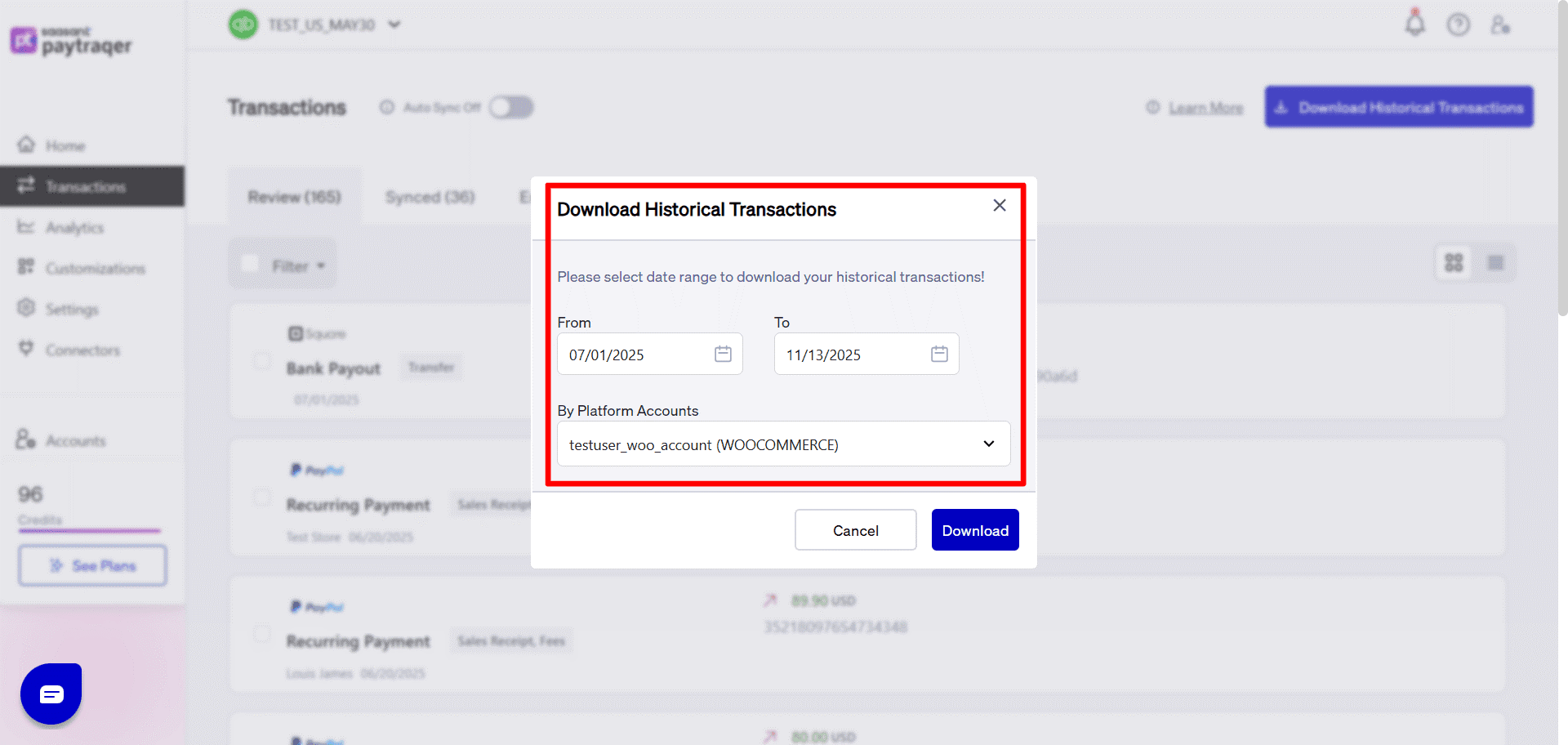
Inspect a few sample transactions, then select and click Sync to send them to QuickBooks.
Start with smaller ranges for testing, then use larger ranges when you feel ready.
Why Connect QuickBooks with WooCommerce Using PayTraQer?
PayTraQer is specifically designed for eCommerce sellers seeking seamless bookkeeping automation. Here’s why it stands out as a top option for integrating WooCommerce with QuickBooks:
Automated Sync: PayTraQer records every sale made through WooCommerce, which includes line items, taxes, coupons, shipping costs, and any partial or complete refunds, and automatically syncs them to QuickBooks Online without requiring manual input.
Real-Time Sync for Up-to-Date Books: PayTraQer regularly tracks your WooCommerce store and updates QuickBooks Online in real-time. This ensures that your financial records always display the latest sales, taxes, and fees.
Eliminates Manual Data Entry and Spreadsheet Uploads: With PayTraQer, there's no longer a need to export CSV files or manually enter transactions into QuickBooks. This automation greatly minimizes time, effort, and the potential for human errors.
Flexible Sync Modes: Select either summary posting or itemized posting according to your accounting requirements and the size of your QuickBooks file.
Multi-Store Sync Support: When handling multiple WooCommerce stores, PayTraQer ensures that each store is synced individually for organized bookkeeping.
Wrap Up
Syncing WooCommerce with QuickBooks Online is greatly simplified when the process is automated, organized, and accurate. PayTraQer takes what is generally a confusing assortment of orders, fees, refunds, taxes, and settlements and turns it into clear, structured entries that integrate smoothly into your accounting workflow. Instead of hunting for numbers or rectifying mismatched data, you receive a consistent, real-time overview of your WooCommerce performance within QuickBooks. Whether you are selling a small number of products or managing a high-volume store, PayTraQer ensures your financial records are precise, your time is valued, and your financial operations run seamlessly.
If you have inquiries regarding our products, features, trial, or pricing, or if you require a personalised demo, contact our team today. We are ready to help you find the ideal solution for your QuickBooks workflow.
Frequently Asked Questions
1) Does PayTraQer sync WooCommerce orders automatically to QuickBooks Online?
Absolutely. Once Auto Sync is turned on, PayTraQer seamlessly imports and records WooCommerce sales, refunds, fees, and taxes into QuickBooks Online instantly.
2) How far back can I import WooCommerce transactions using PayTraQer?
PayTraQer enables you to instantly download and sync up to 60 days or more of WooCommerce transaction history, making it perfect for backdated bookkeeping.
3) Does PayTraQer store transaction history?
Yes. Sync History provides access to earlier sync logs, timestamps, and transaction details for audit needs.
4) What if a WooCommerce transaction fails to sync?
Failed entries show up in the Error tab along with an explanation. You can address the issue, modify the mapping, and re-sync the transaction immediately.
5) Is PayTraQer suitable for accountants managing multiple WooCommerce clients?
Absolutely. PayTraQer is designed for accountants and bookkeepers managing multiple e-commerce clients with different workflows.